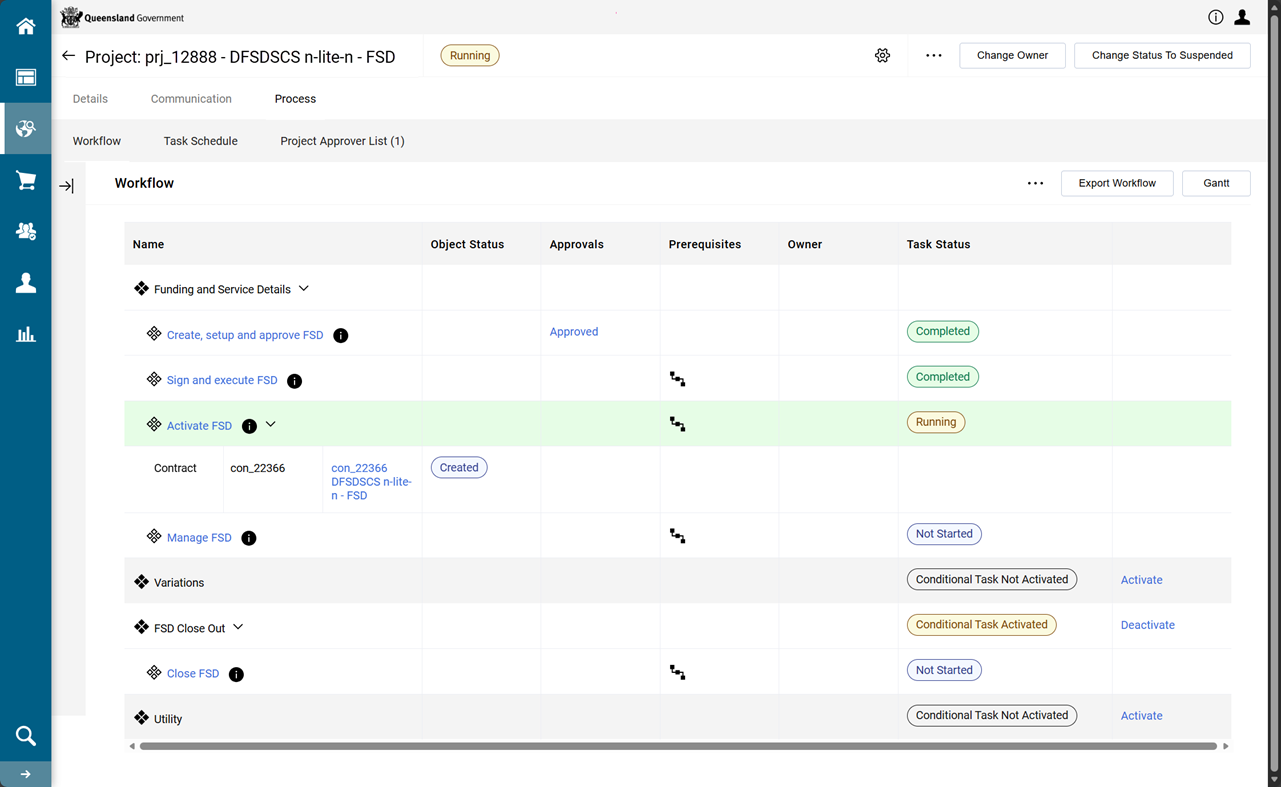
Sign and execute FSD
There is two paths through this task based on whether electronic signatures or wet signatures are required for the contract.
 Wet signatures
Download the generated FSD contract (MCD) and email to the Supplier. Once a signed FSD is received, the FSD is attached to the contract.
Download final document
-
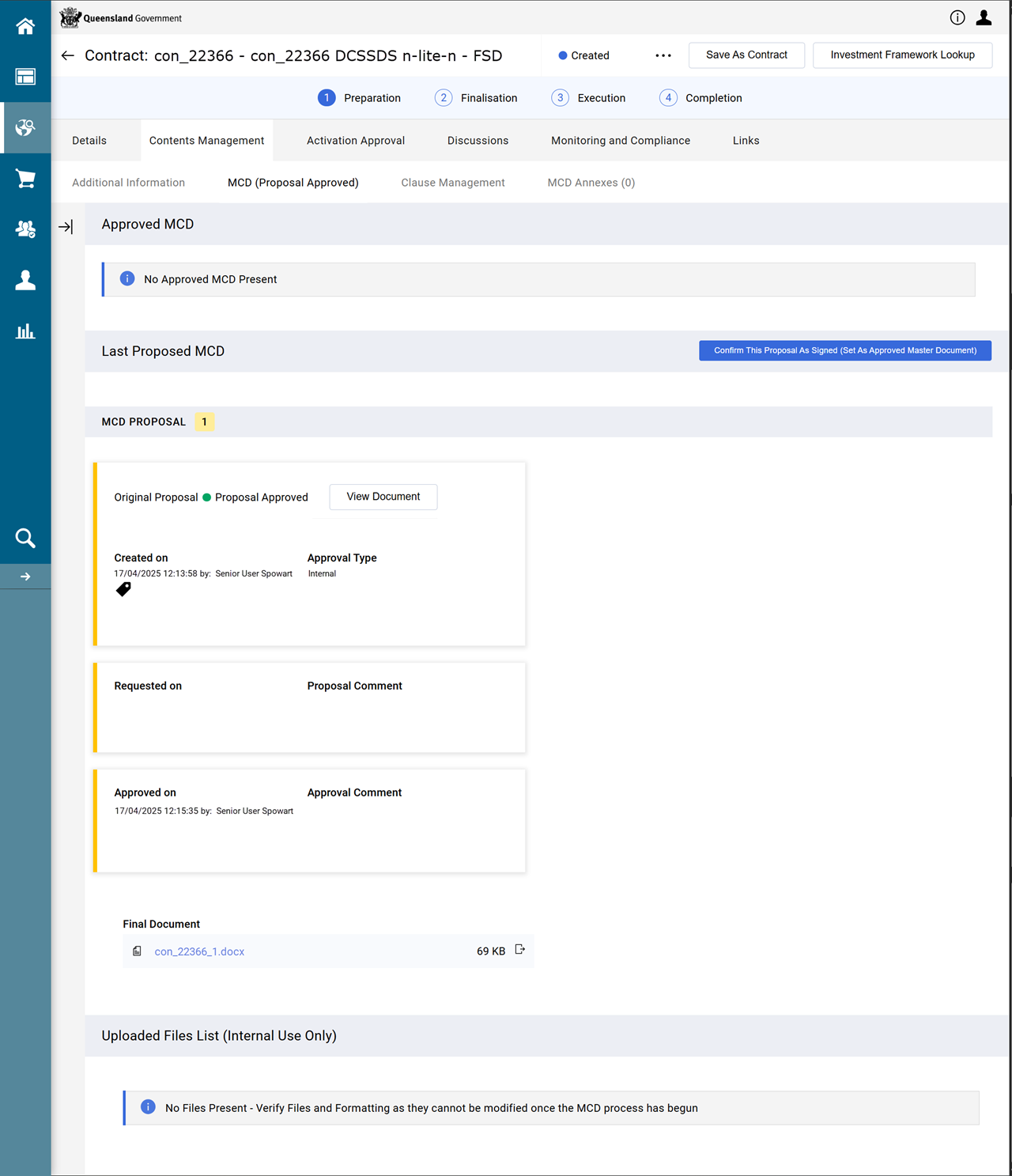
From the contract, click Contents Management tab > MCD (Proposal Approved) page.
-
Scroll to the MCD Proposal section, click the link to the Final Document to download the FSD in Word.
-
Convert document version of FSD into PDF and send to the supplier for signature.
Attach signed document to a contract's Attachments
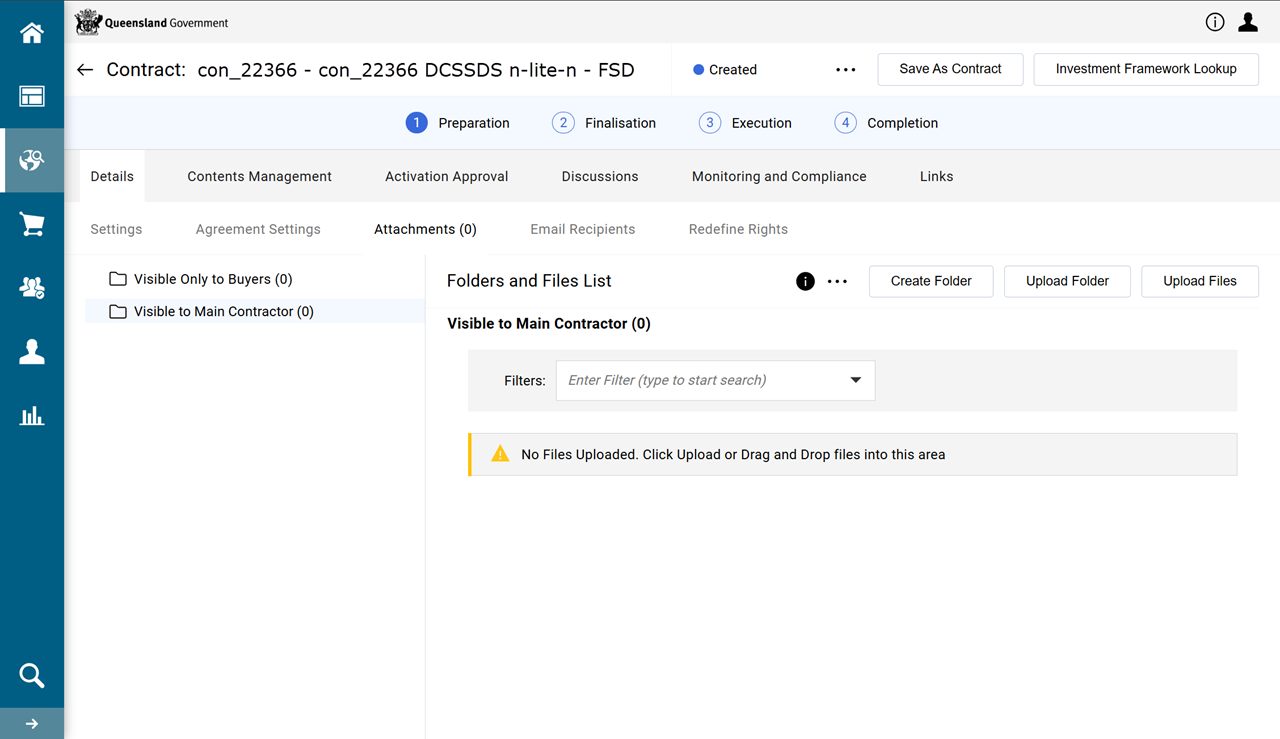
Warning Make sure the correct Visible area is chosen first before uploading file.
-
Buyer is the Department.
-
Main Contractor is the Supplier (i.e. the Funded Organisation).
-
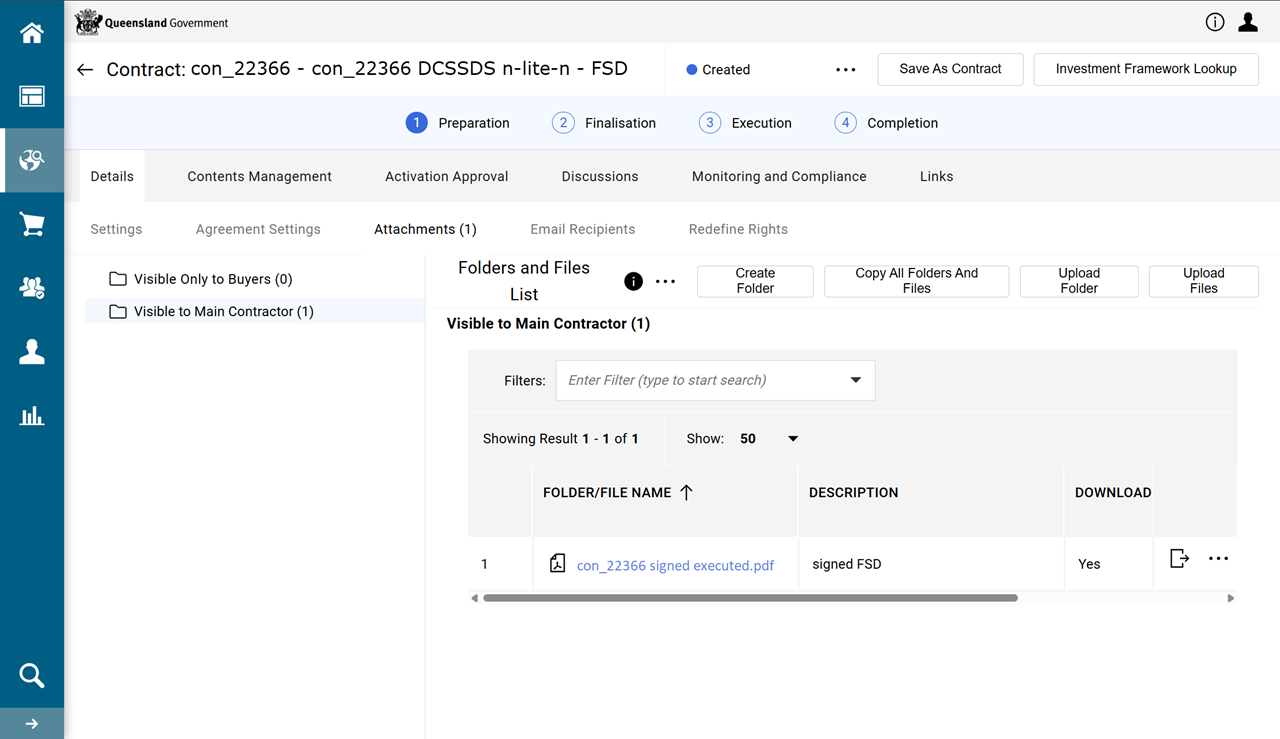
From the contract, click Details tab > Attachments
-
Click Upload Files and locate the file/s required.
-
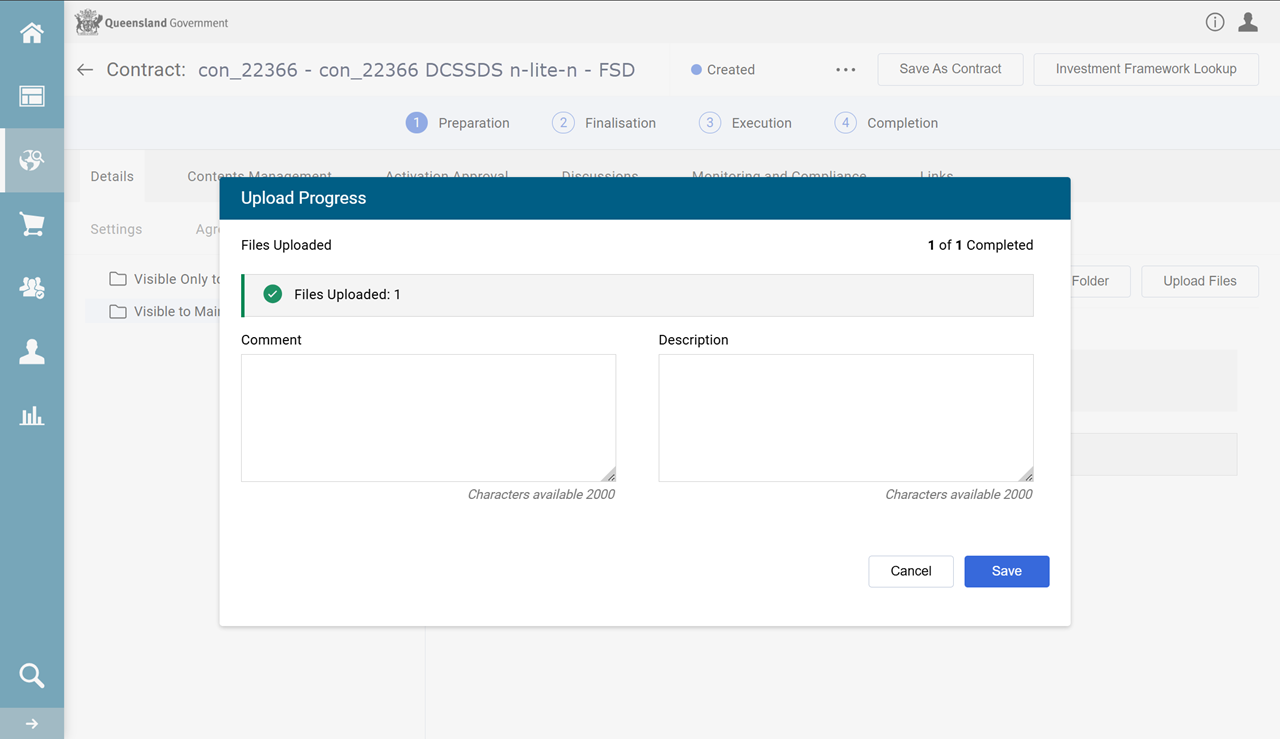
Enter a Comment and Description relevant for the selected file/s.
-
Click Save.
Confirm FSD contract (MCD) as signed
-
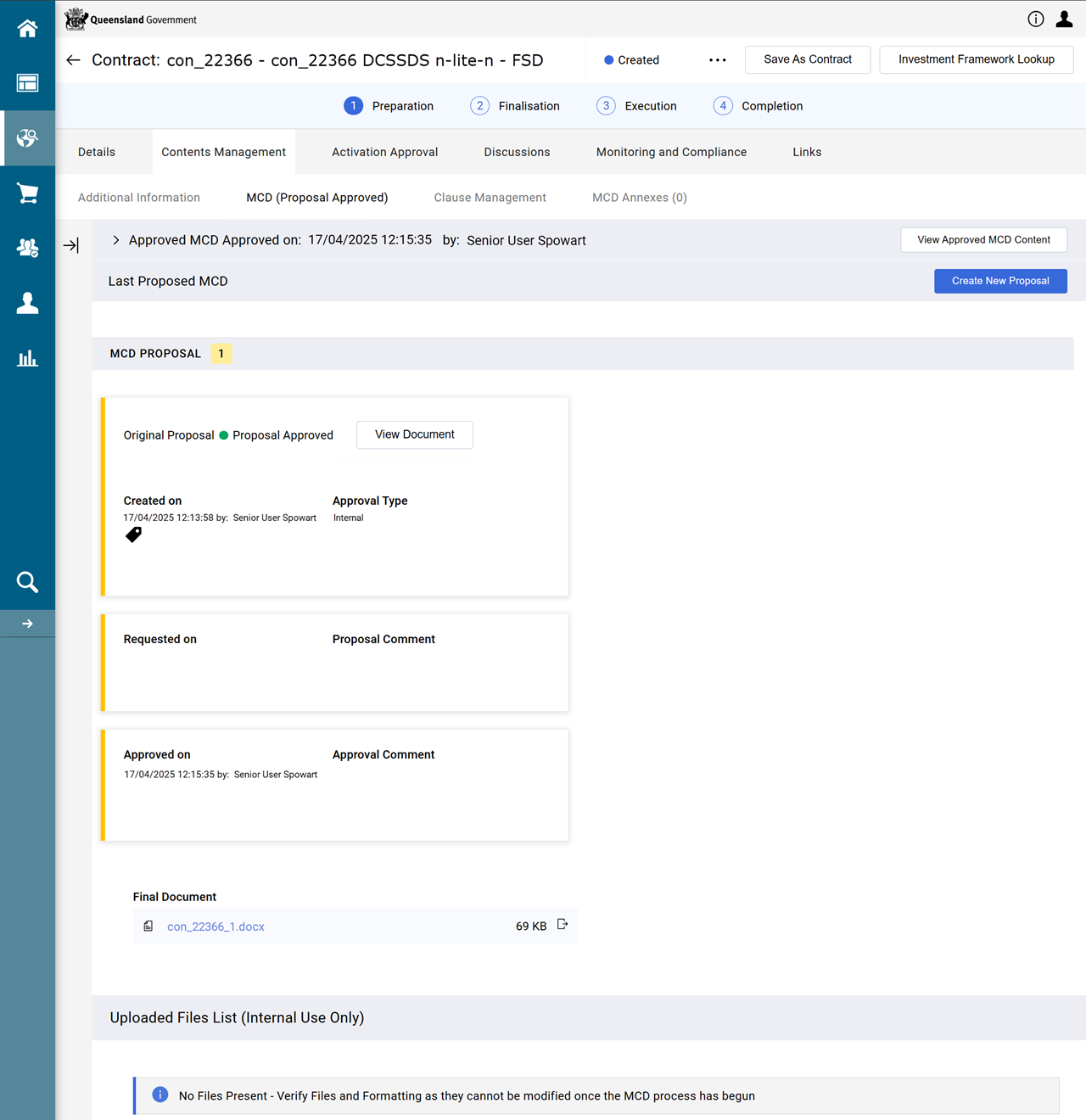
From the contract, click Contents Management tab > MCD (Proposal Approved) page.
-
Click Confirm This Proposal As Signed (Set As Approved Master Document).
Complete workflow task: Sign and execute FSD
Tip When the project is not known, try navigating to the procurement project via the contract located in the contract register. Refer to Search for contracts from the Contracts Register
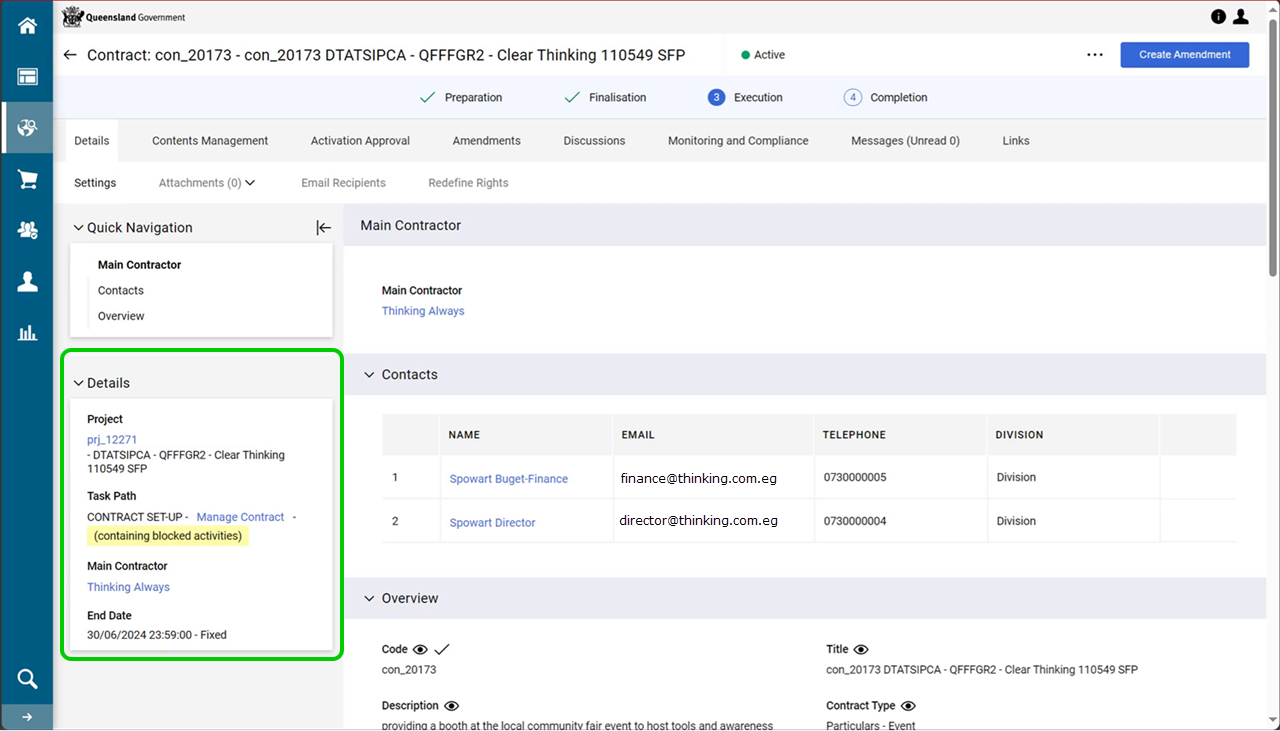
Use the contract's Sidebar menu for: links to the project, the current workflow task, and the supplier (i.e. the Funded Organisation's profile.
Example From the contract's sidebar menu:
-
Click Details tab > Settings > Details.
-
Click the prj_ hyperlink in the Project field.
-
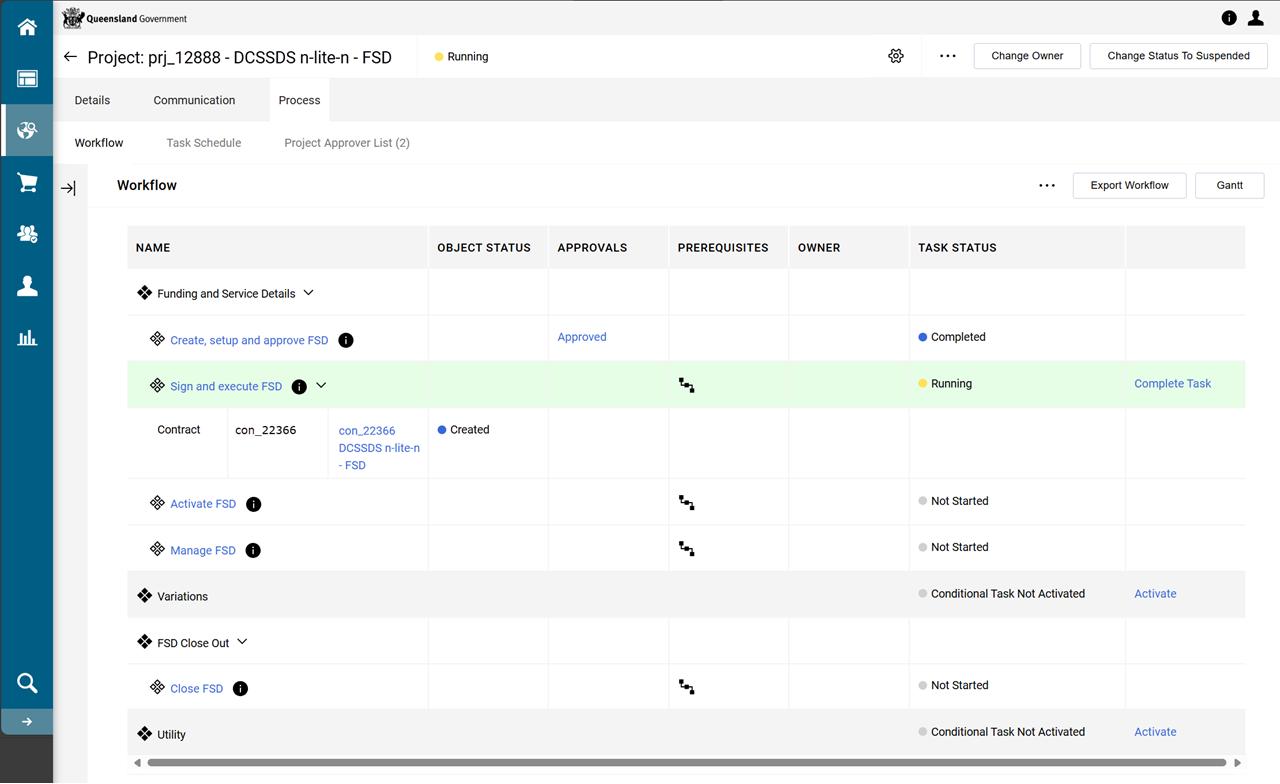
From the FSD project, click Process tab > Workflow page.
-
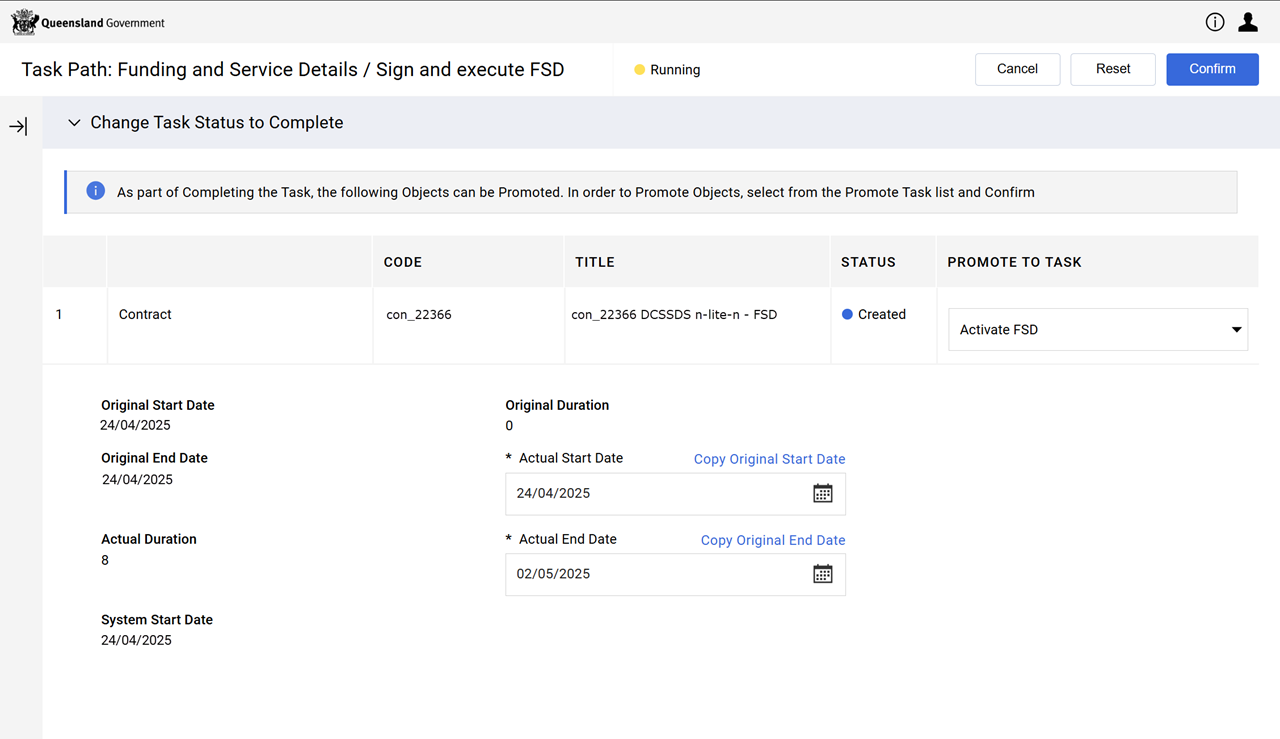
Click Complete Task hyperlink for the Sign and execute FSD workflow task.
-
Ensure the PROMOTE TO TASK dropdown list is set to Activate FSD.
-
Click Confirm.
-
Click Confirm.
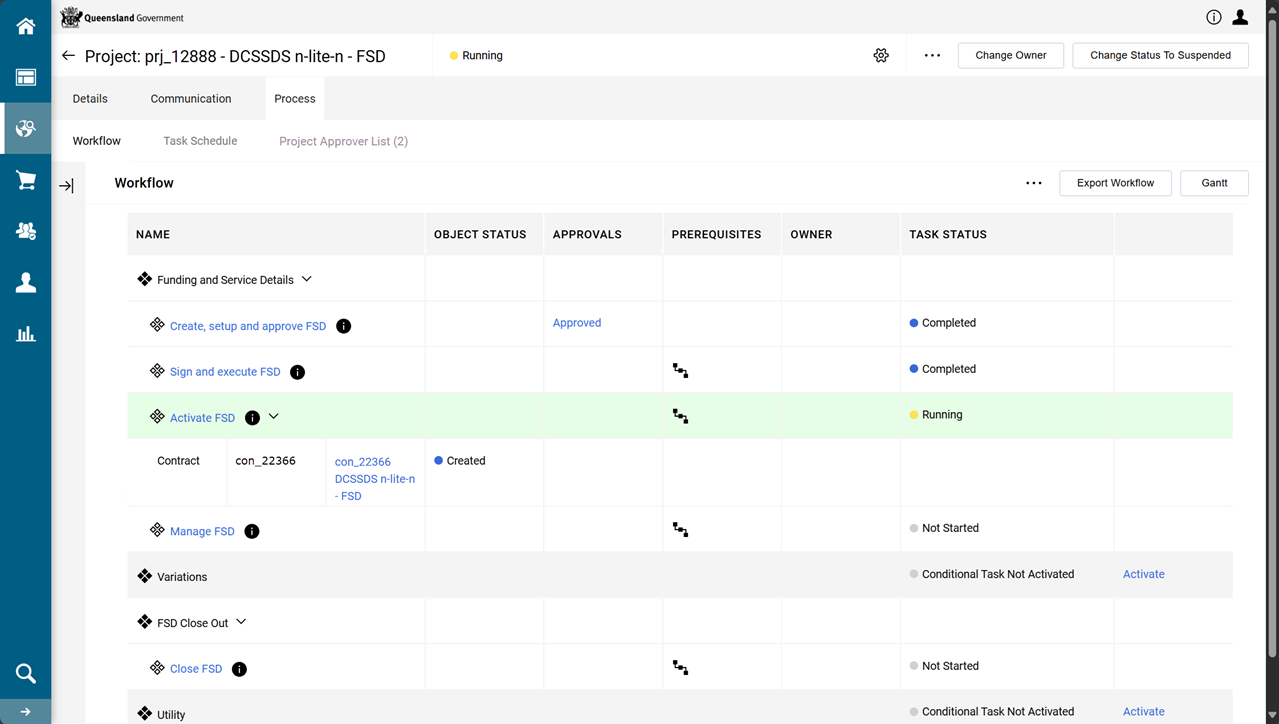
The Sign and execute FSD workflow's TASK STATUS updates to Completed.
The Activate FSD workflow's TASK STATUS updates to Running.
Electronic signatures
Set up the signatories for the contract (MCD Master Contract Document) and submit for electronic signing.
Create signatories
Warning This process requires due diligence when assigning signatories to the contract.
Signatories must be added (or updated) and in the correct order (refer to Electronic Signature Settings subsection for the Electronic Signature Route).
-
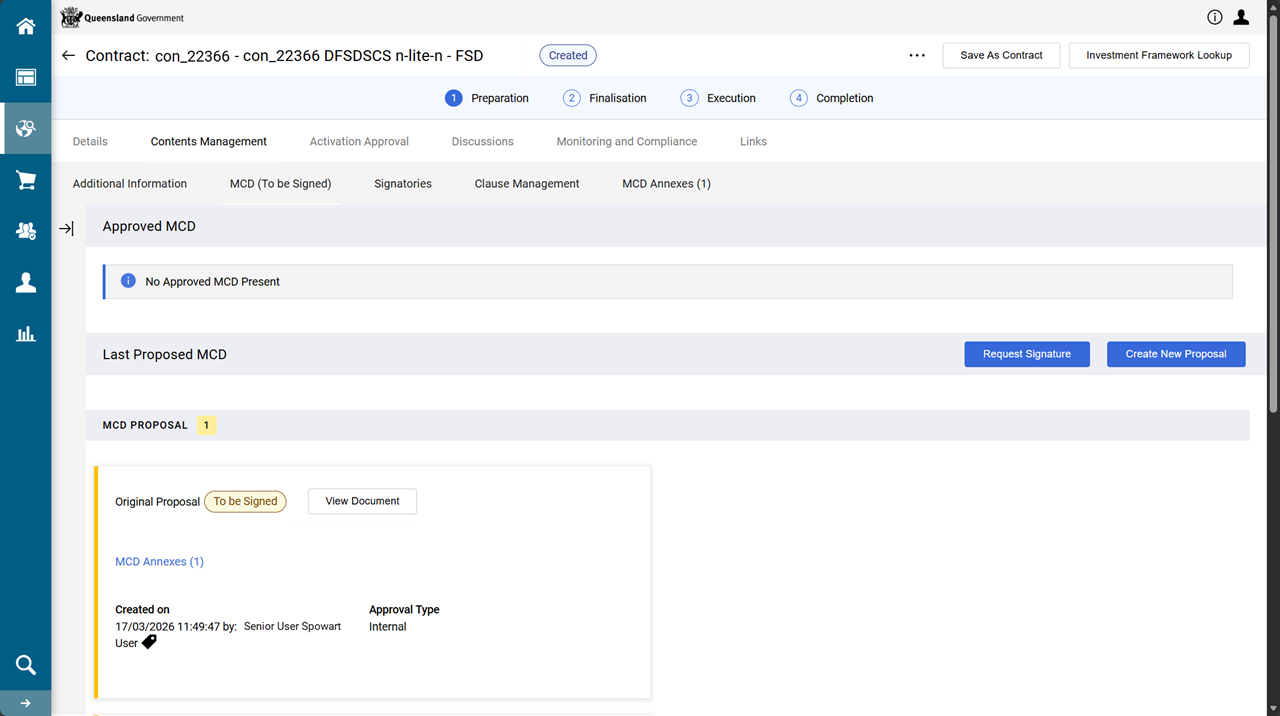
From the contract's Contents Management tab > MCD (To be signed) page, click Request Signature.
-
Click Go To Signatories.
Refer to Signatories (create, sort, edit, delete, deactivate, reactivate) for instructions on how to Create, Sort, Edit, Delete, Deactivate or Reactivate a signatory.
Request Signature
-
From the contract's Contents Management tab > MCD (To be signed) page, click Request Signature.
-
Ensure the order is correct - the email and mobiles are correct.
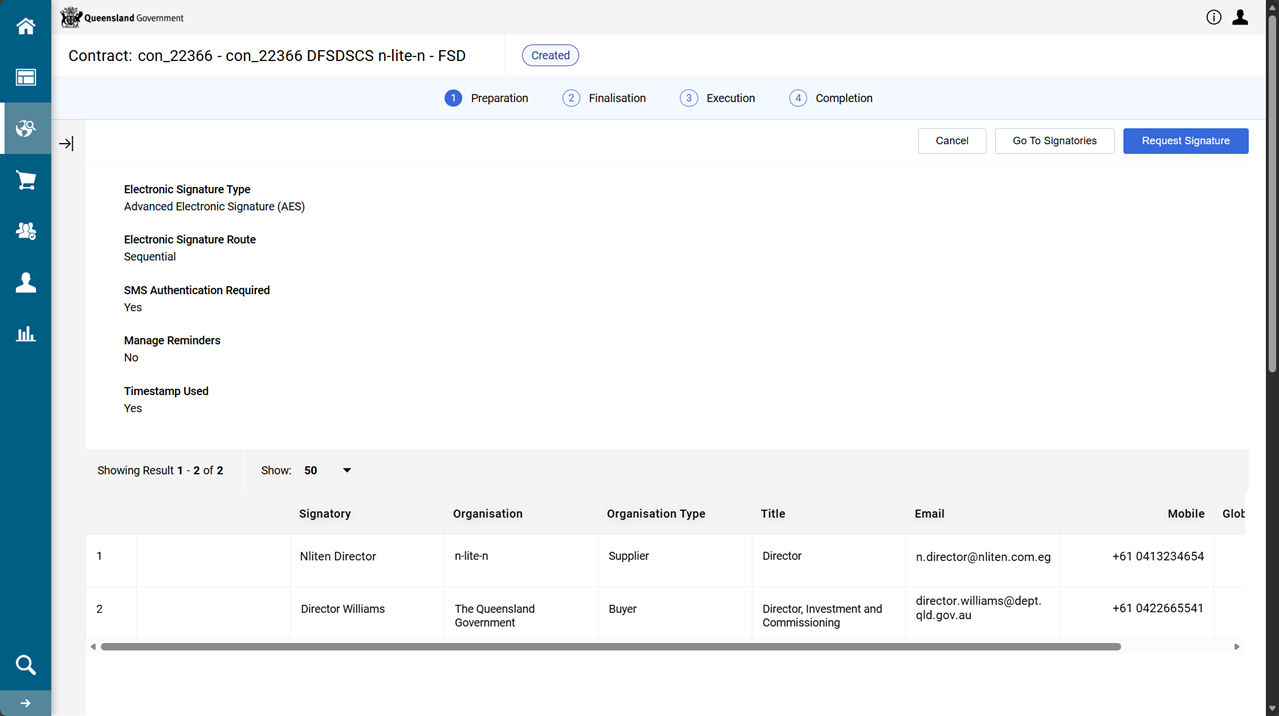
Tip Scroll further down the page to inspect the MCD document and any Annexes.
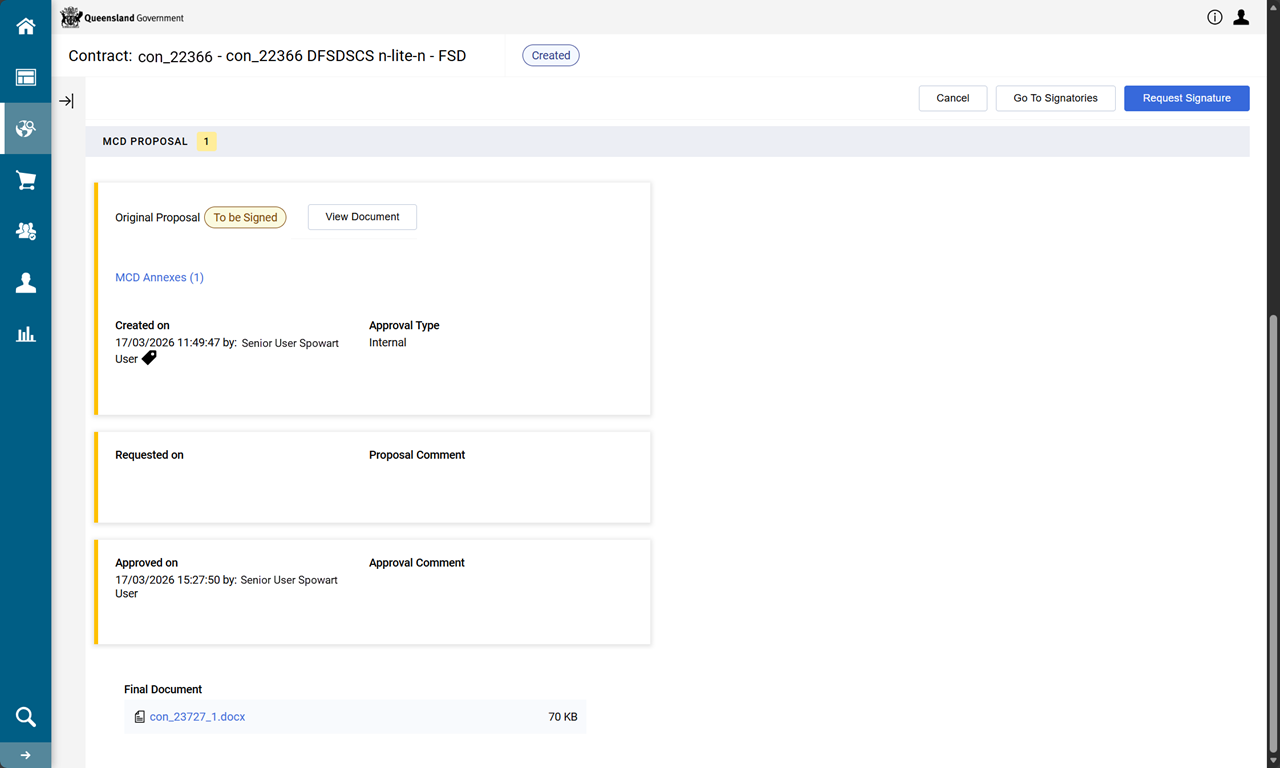
-
Click Request Signature.
The status of the MCD is Sent for Signature.
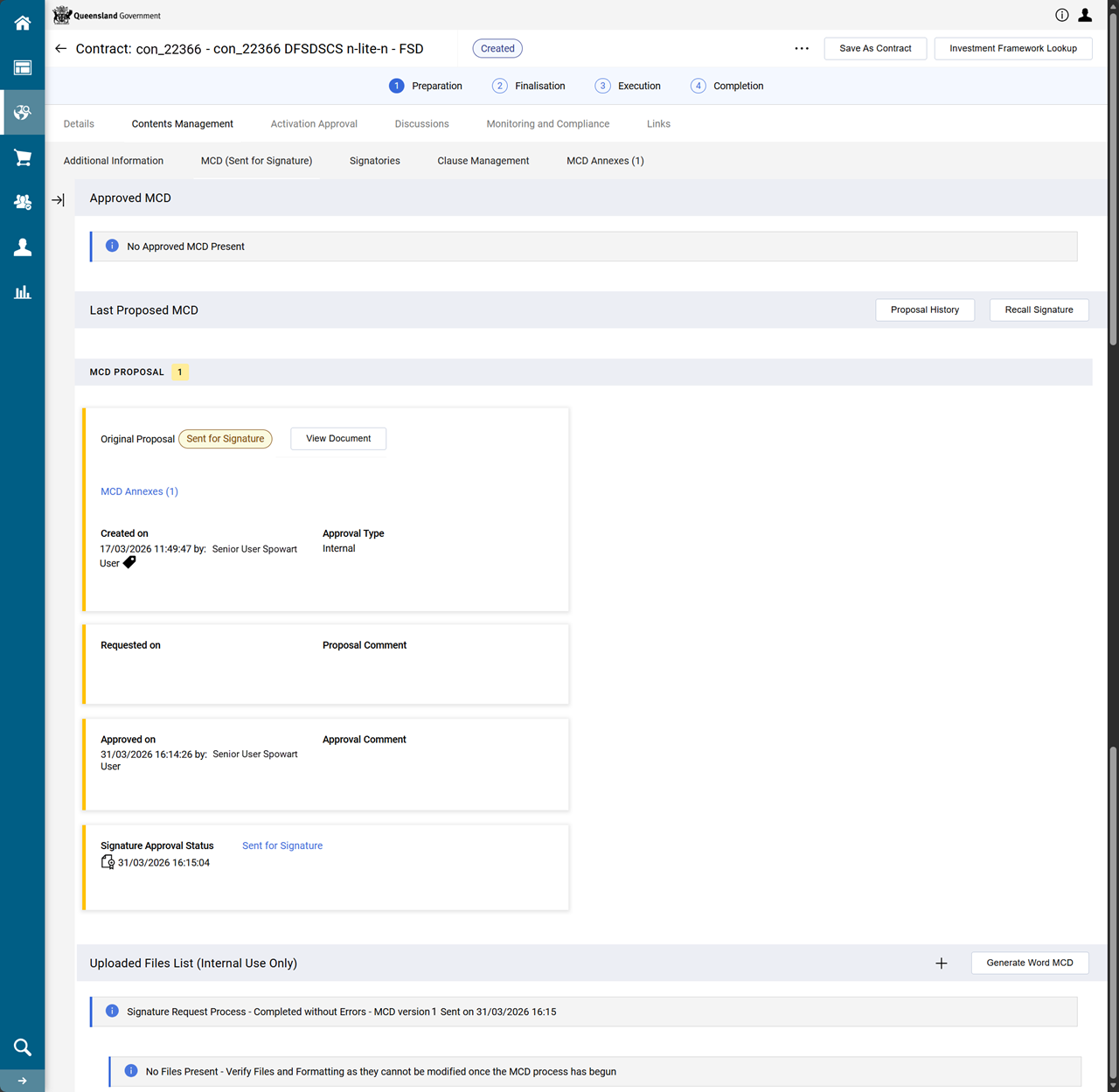
Tip In the Signature Approval Status box, the Sent to Signature hyperlink displays the status of signatories involved in the esign process. Refer to View the signature approval status.
Electronically sign contract (MCD)
An email is sent to the signatory's email address when the contract requires a signatory to eSign.
If there are more signatories listed then at completion of signing, the process repeats for the next signatory. (refer to View the signature approval status)
-
Find the email.
- Click Review documents.
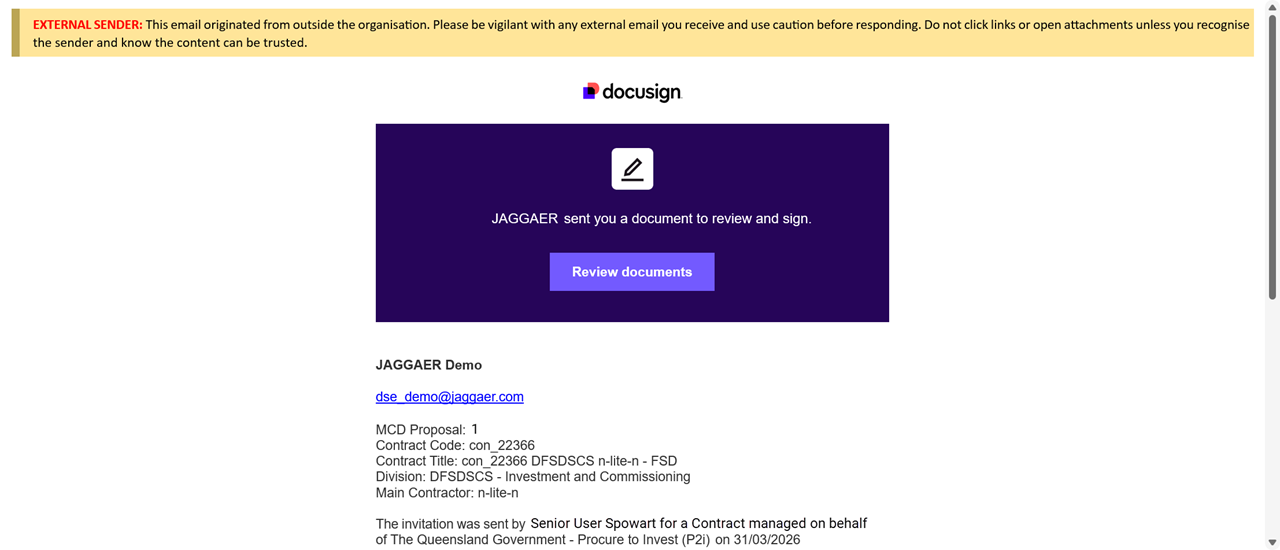
-
Click Continue.
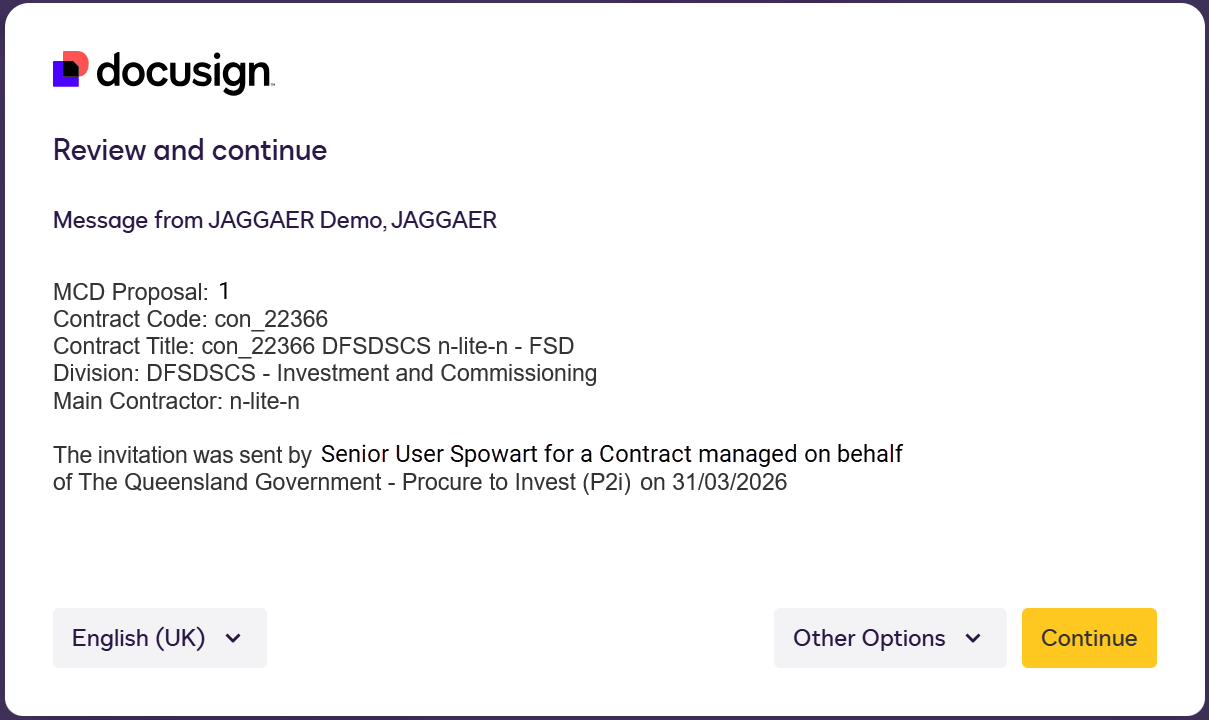
-
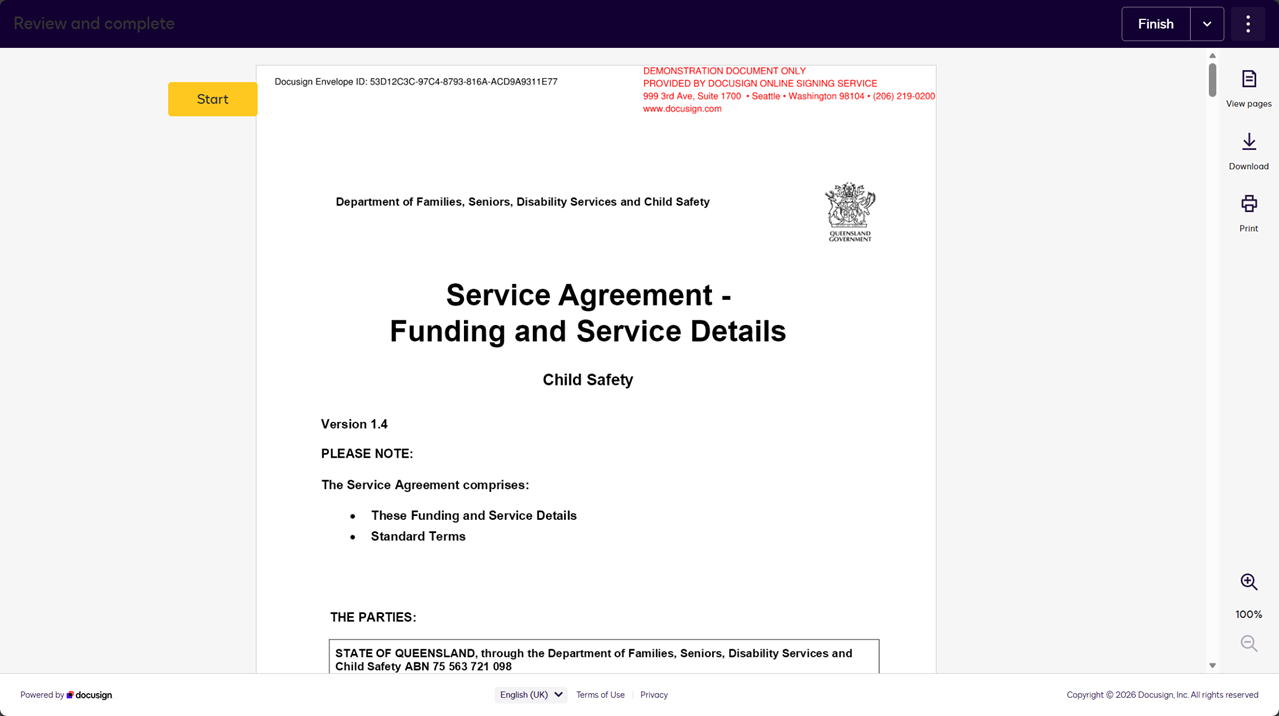
Review the contract via scrolling down (or click Start to navigate to the first signature spot).
-
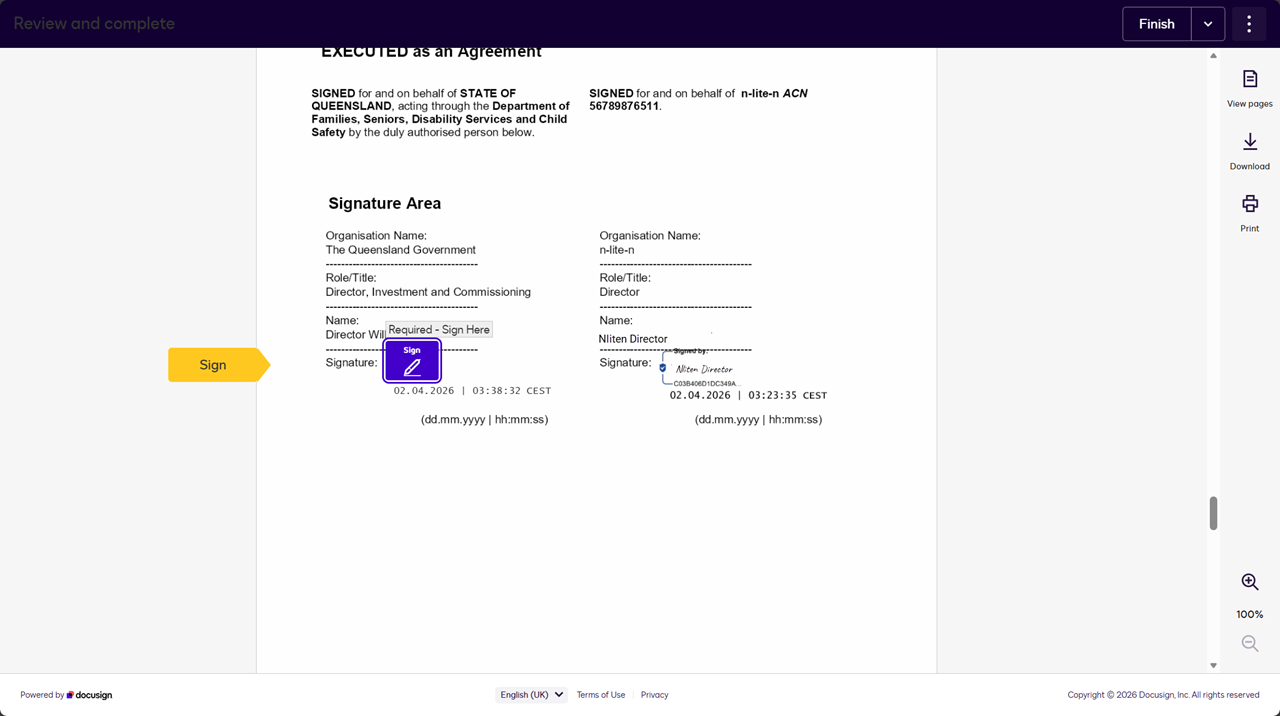
Click Sign.
-
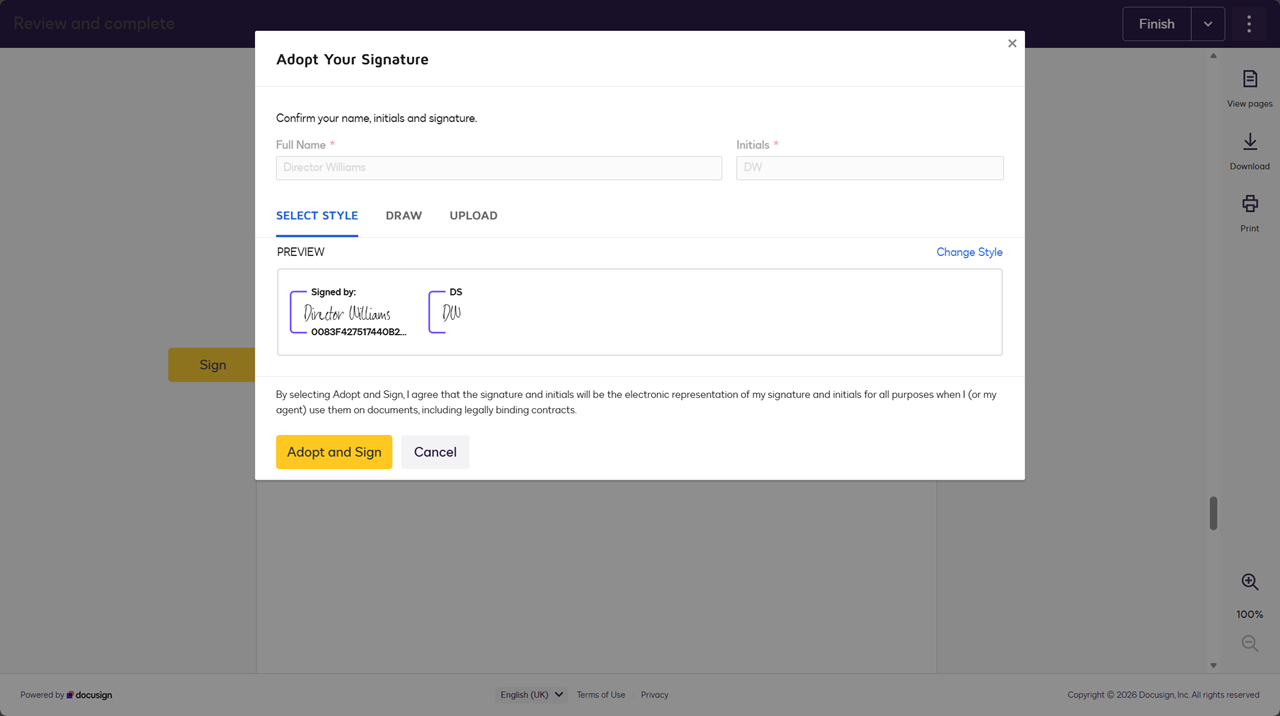
Click Adopt and Sign.
-
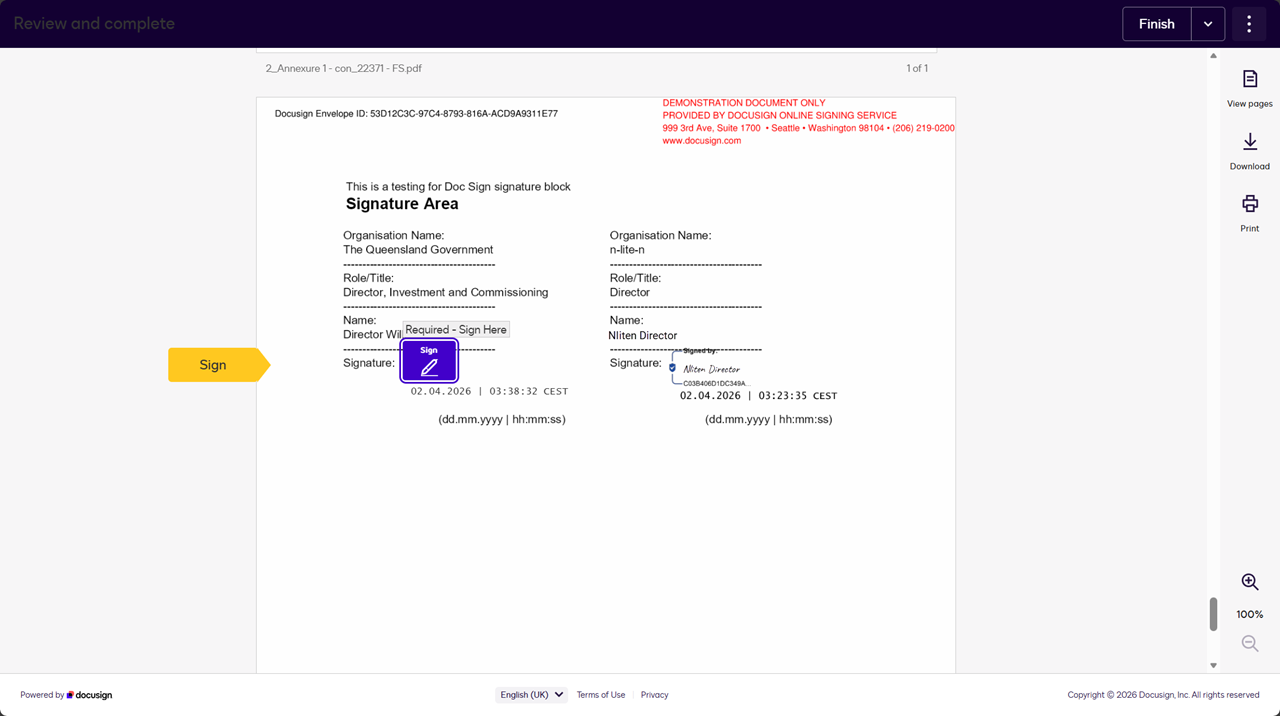
(Optional) When annexes are included each will need to be signed.
Example The annex title is in top left of screen.
(Annexure 1 - con_22371 - FS.pdf)
-
Click Sign.
-
-
When all documents are signed, click Continue.
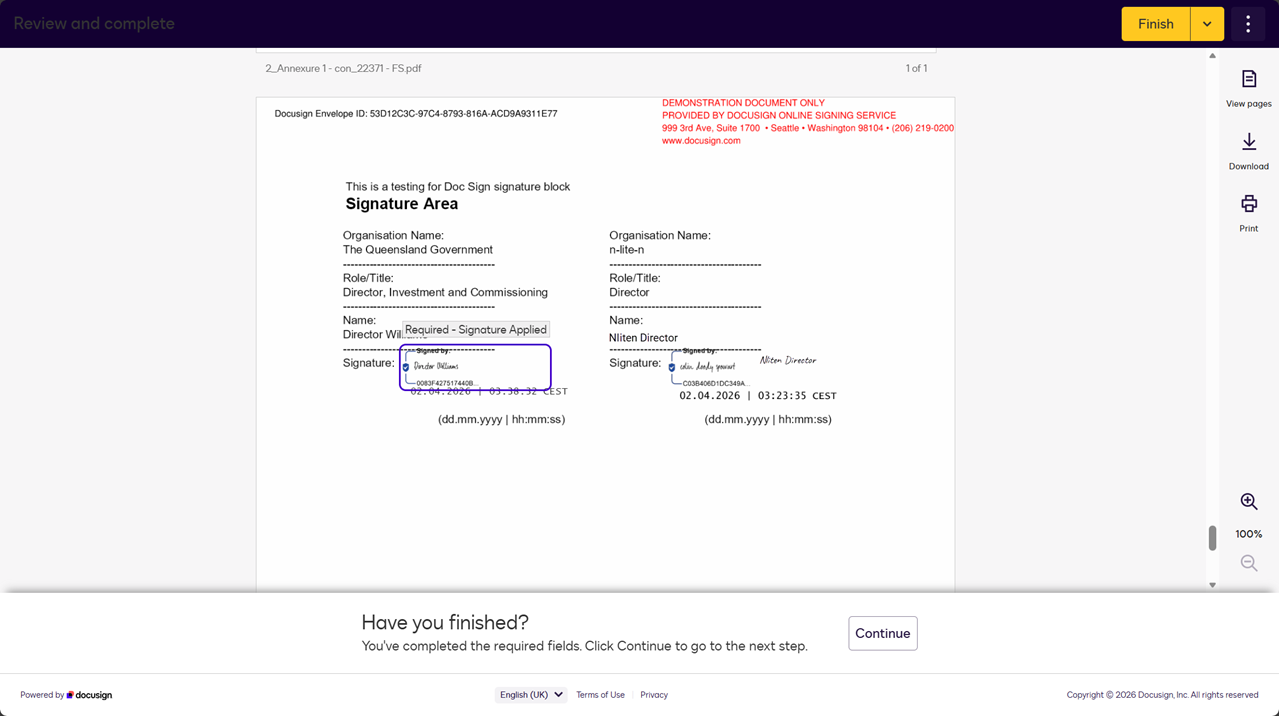
-
An sms is sent to the signatory's mobile phone with a confirmation code.
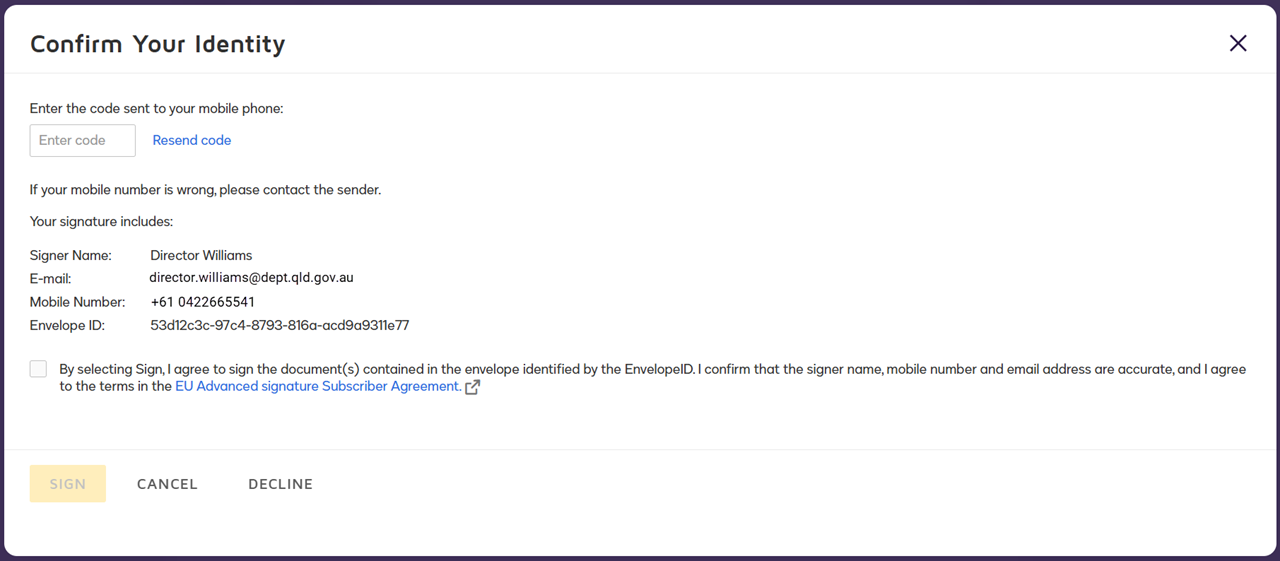
-
Enter the code.
-
Tick the agree checkbox
-
Click Sign.
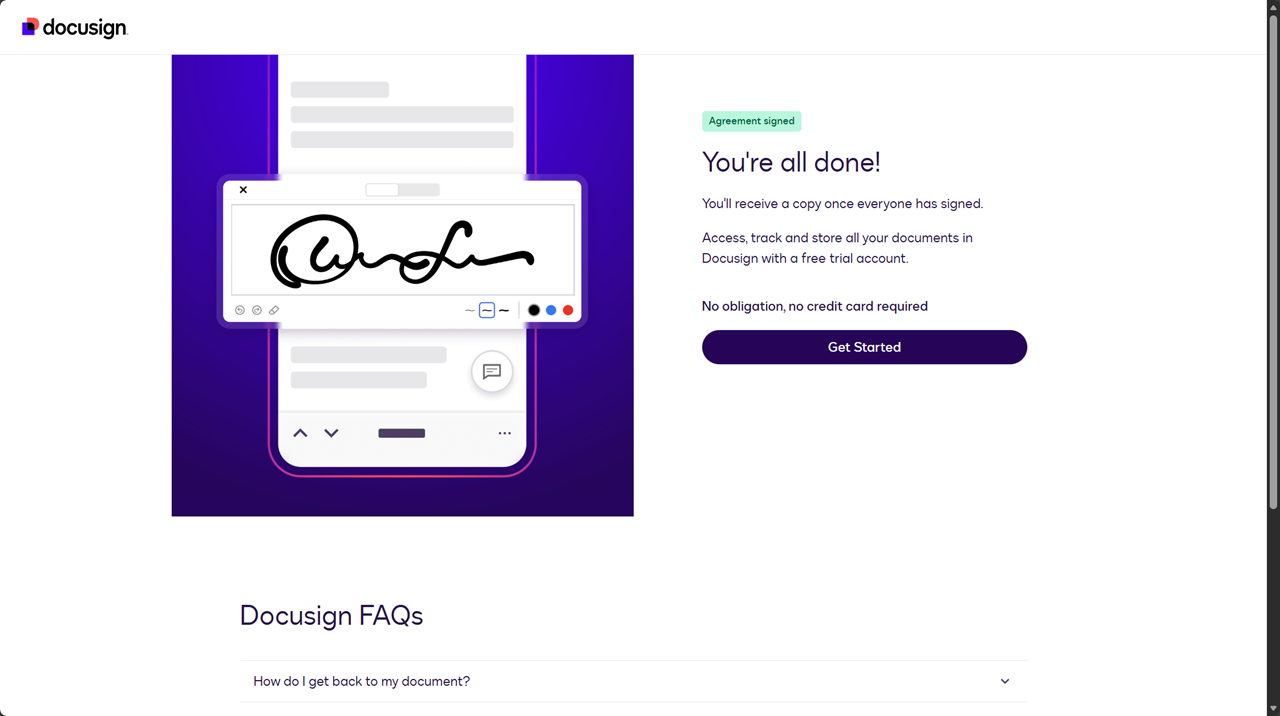
Confirm FSD contract(MCD) as eSigned
-
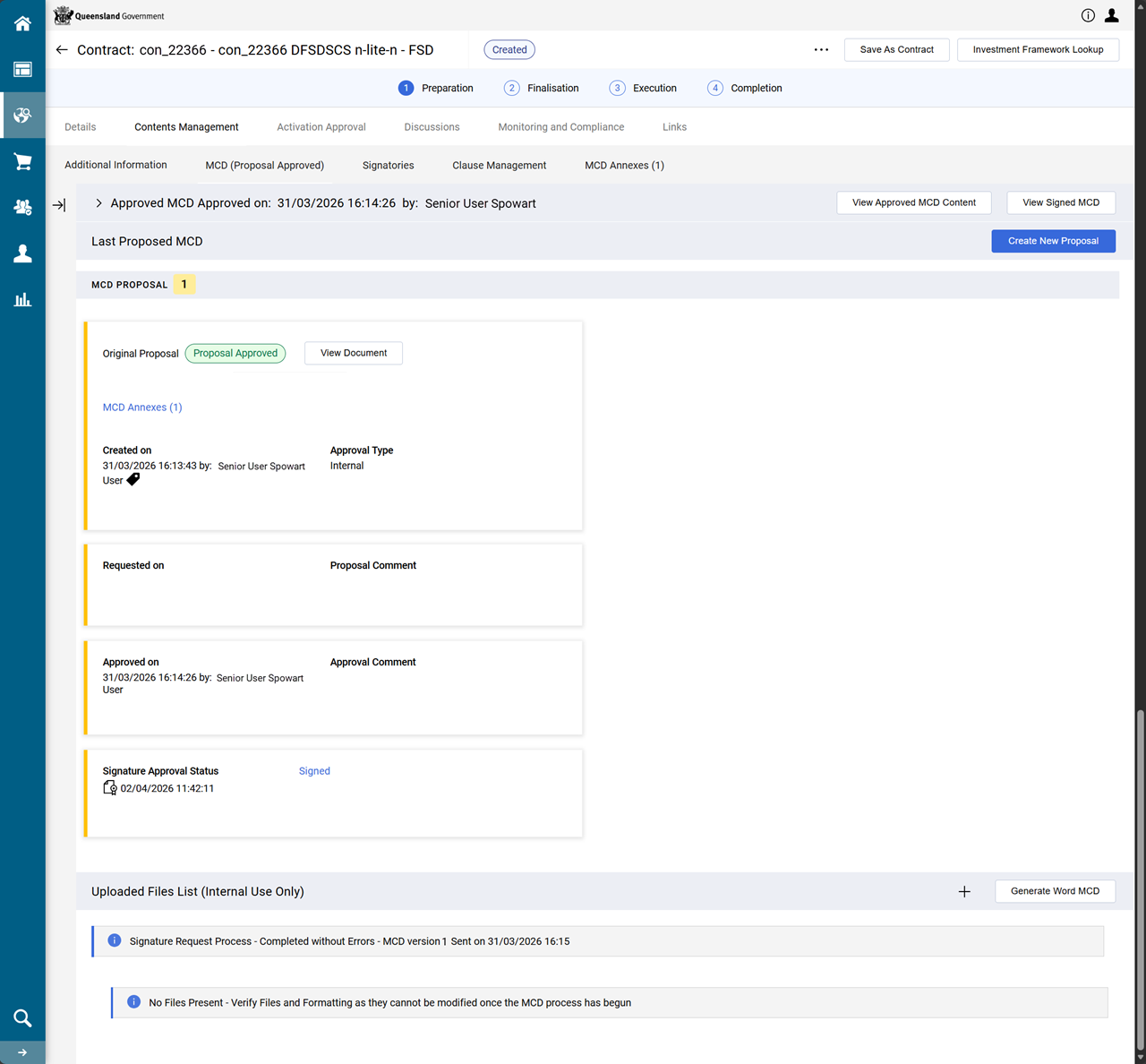
From the contract, click Contents Management tab > MCD (Signed) page.
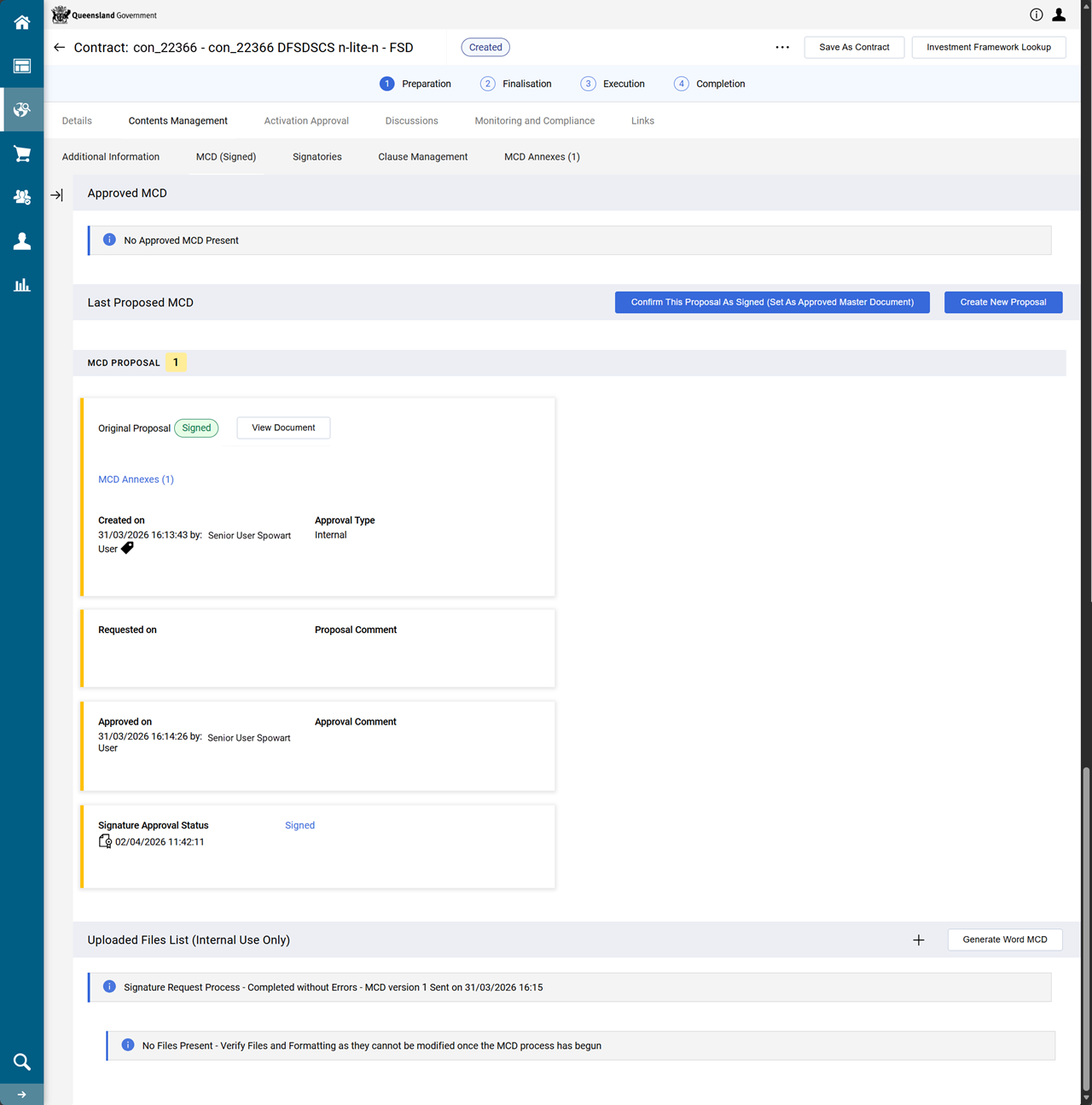
-
Review the signed contract and its certificate (refer to View the eSigned contract and Docusign certificate)
-
Click Confirm This Proposal As Signed (Set As Approved Master Document).
Complete workflow task: Sign and execute FSD
Tip When the project is not known, try navigating to the procurement project via the contract located in the contract register. Refer to Search for contracts from the Contracts Register
Use the contract's Sidebar menu for: links to the project, the current workflow task, and the supplier (i.e. the Funded Organisation's profile.
Example From the contract's sidebar menu:
-
Click Details tab > Settings > Details.
-
Click the prj_ hyperlink in the Project field.
-
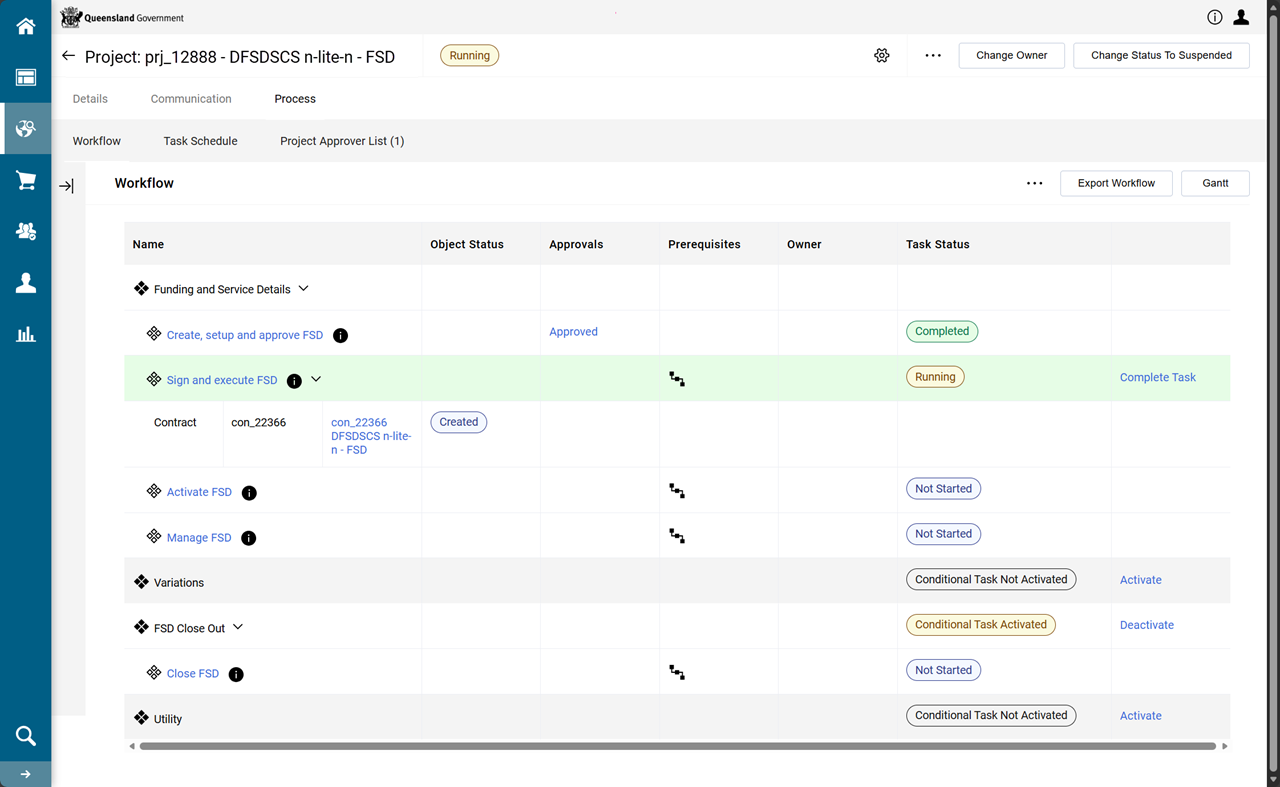
From the FSD project, click Process tab > Workflow page.
-
Click Complete Task hyperlink for the Sign and execute FSD workflow task.
-
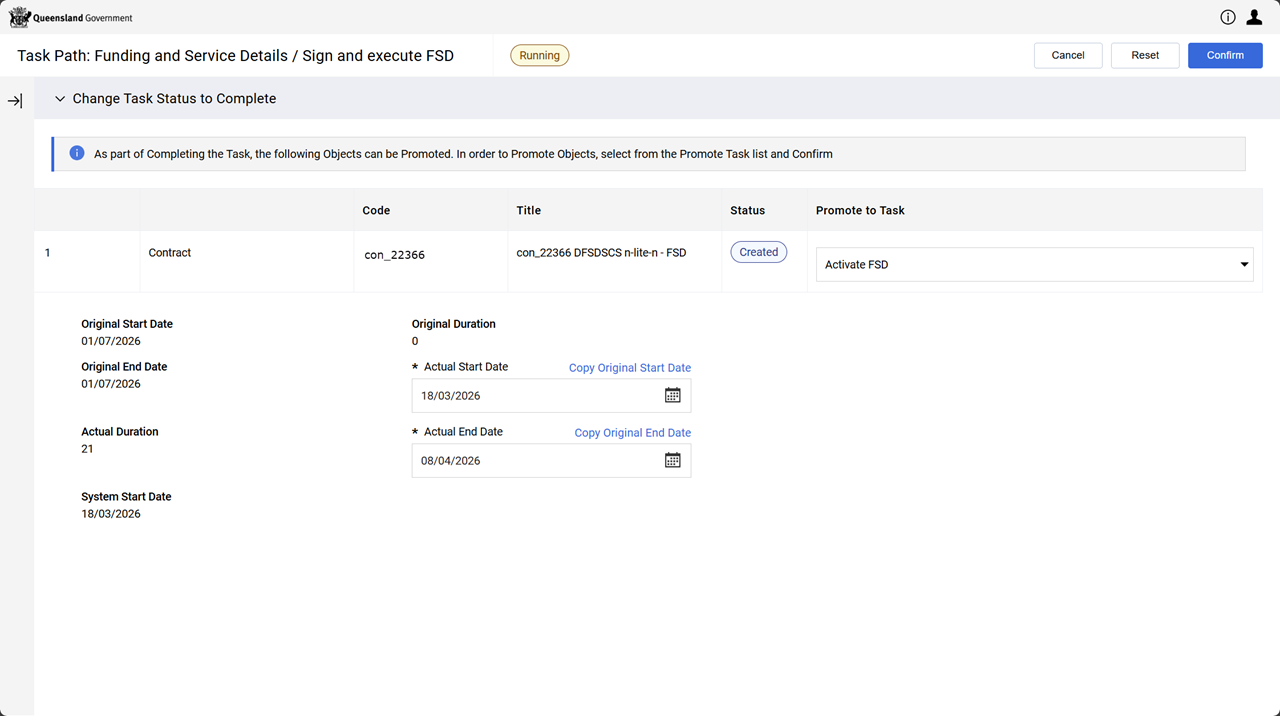
Ensure the PROMOTE TO TASK dropdown list is set to Activate FSD.
-
Click Confirm.
-
Click Confirm.
The Sign and execute FSD workflow's TASK STATUS updates to Completed.
The Activate FSD workflow's TASK STATUS updates to Running.